Syncing Your Liked Music to Stem 2
Link your account and sync your Liked set to Stem 2 for offline, on-device playback.
4 min read. Updated June 25, 2026
Linking Stem 2 to your StemFM account keeps your music in sync both ways: your liked tracks sync down to the device for offline play, and Stem tracks you create on the device appear in your StemFM Liked set.
Link and sync
- 1
Visit the setup page
Go to stem.fm/setup, or scan the QR code that came in the box.
- 2
Follow the link steps
Connect your account so audio and controls mirror between StemFM and the device.
- 3
Connect Wi-Fi
Sync runs over Wi-Fi — a 5GHz network works best.
- 4
Let it sync
Your liked music transfers to the device’s onboard storage for offline playback.
Connect from Your Stem2s
- 1
Open Your Stem2s
In the sidebar under Devices, click Your Stem2s to see every device on your account, each with its battery, storage, and StemOS version.
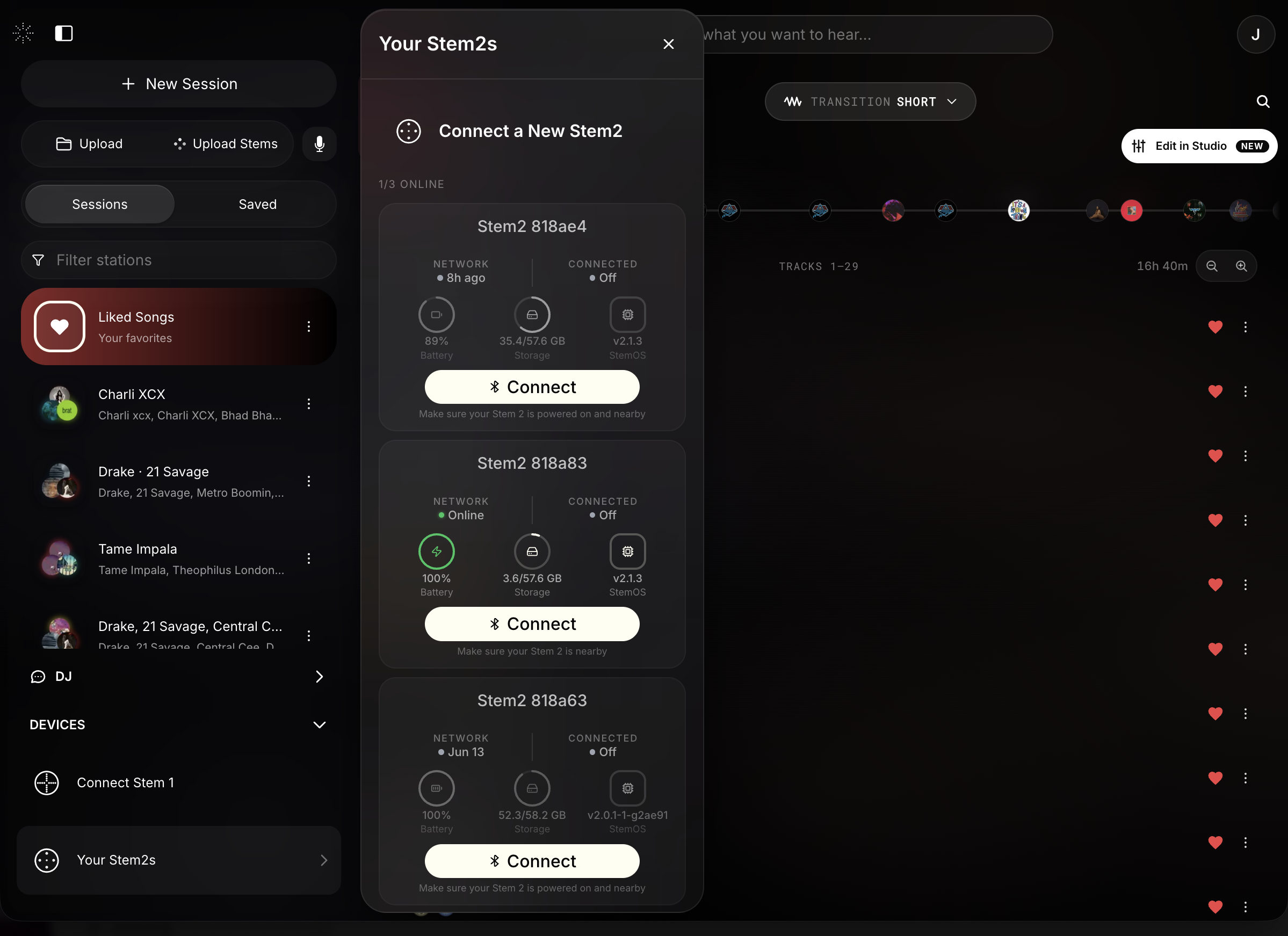
Sidebar → Devices → Your Stem2s. - 2
Connect over Bluetooth
With the device powered on and nearby, click Connect and choose it in the pairing prompt. Once linked, the card shows Manage and Disconnect.
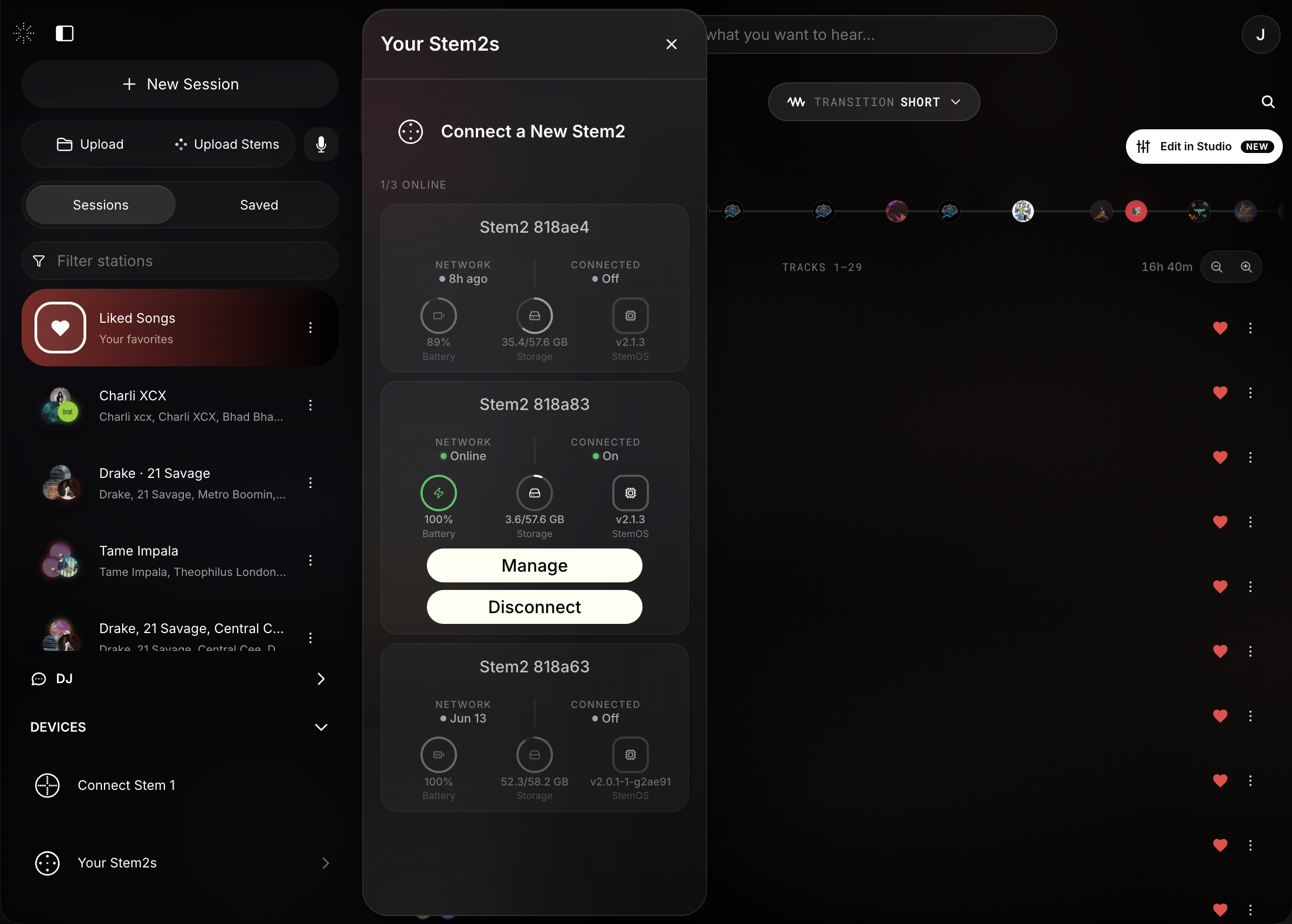
A connected device shows Manage and Disconnect.
Manage from the panel
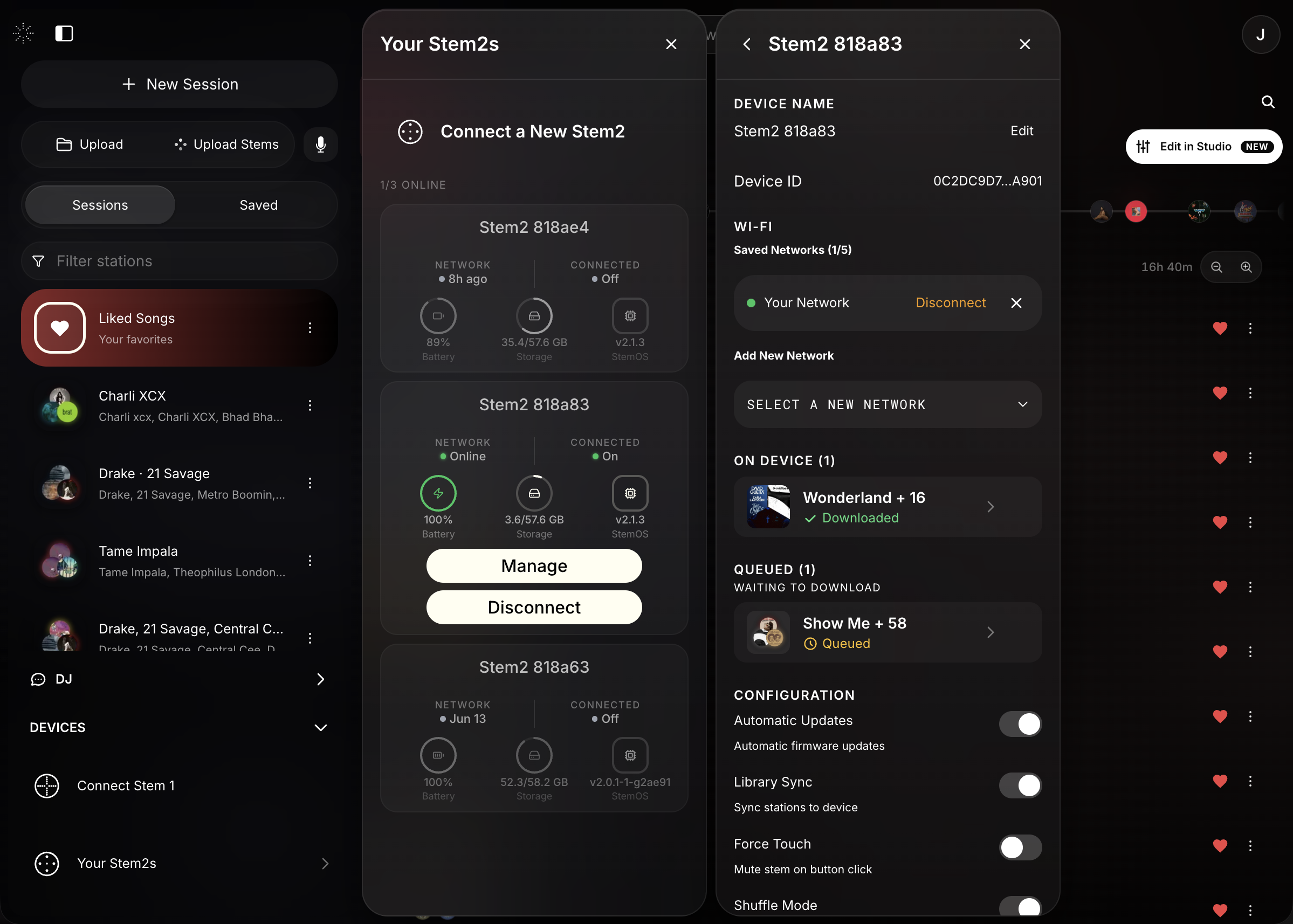
- Toggle sync and stem features on or off.
- Manage Wi-Fi networks and run manual firmware updates.
- View device info and battery, and re-link your account if needed.
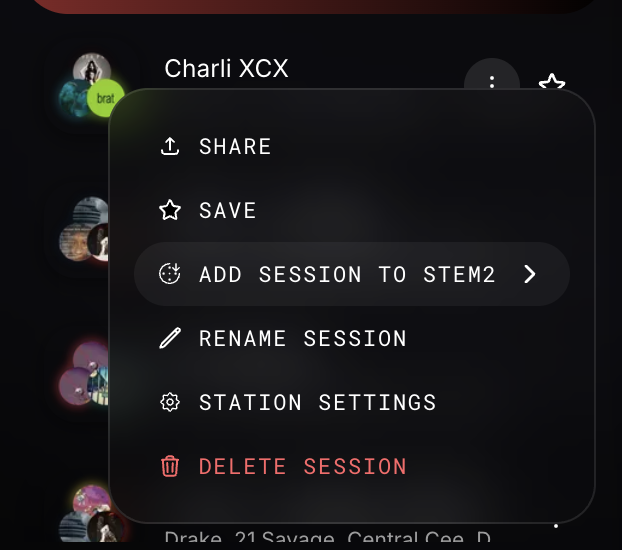
Add a session to Stem 2
You can push a specific session to the device for offline play without waiting for a full sync. Open a session’s ⋯ menu and choose Add Session to Stem2; its tracks download to the device the next time it’s online.